Shopify sticky add to cart: a practical guide
A sticky add-to-cart bar keeps a purchase control available as shoppers scroll. Choose a theme setting, app or custom build based on your product and test the complete cart journey.
By Charles · Published · Updated
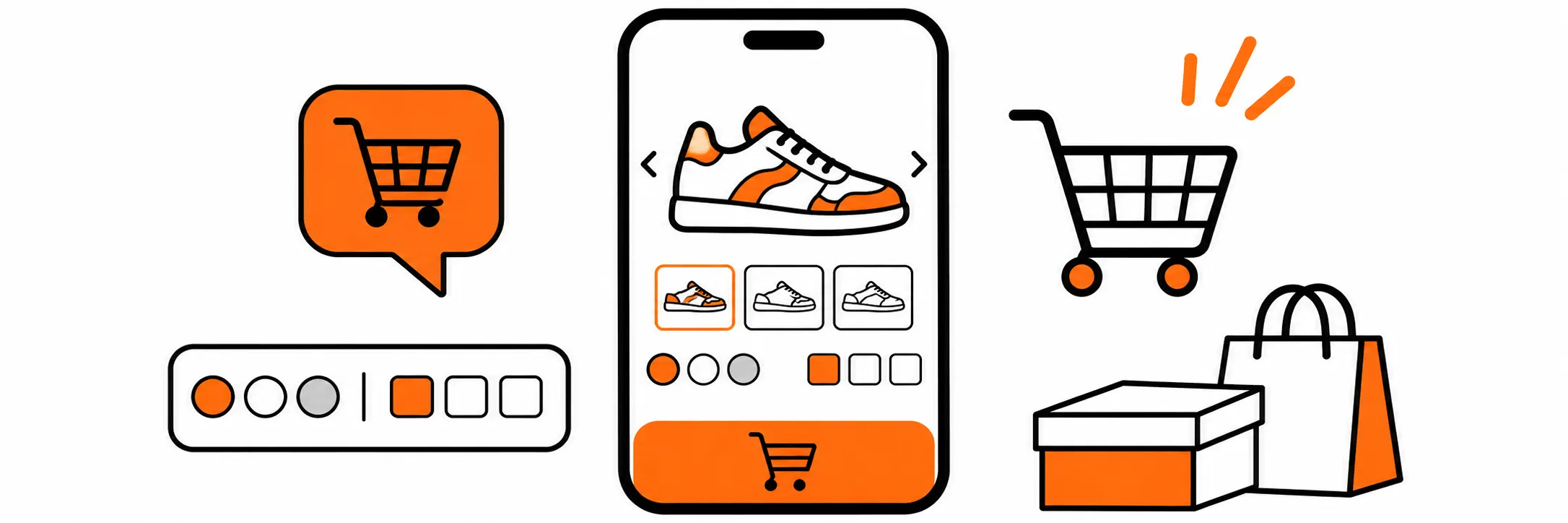
A Shopify sticky add-to-cart bar keeps a purchase control available as a shopper scrolls a product page. Start with your theme's settings, then consider an app or scoped custom work if the built-in option does not meet your needs. Test the selected variant, availability, layout, keyboard focus and cart before publishing.
For the wider theme context, see custom Shopify theme sections. Need help with a specific product page? Send Ecommerce Nerds a project brief.
Key facts
- Shopify's product template includes a form for selecting a variant and adding it to the cart. Shopify product template, checked 23 November 2026.
- Shopify's variant guidance addresses option combinations and availability. Support product variants, checked 23 November 2026.
- Shopify recommends duplicating a theme before customization so changes can be discarded. Duplicating themes, checked 23 November 2026.
- WCAG 2.2 requires a focused interface component not to be entirely hidden by author-created content. W3C focus guidance, checked 23 November 2026.
When is a sticky add-to-cart bar useful?
A sticky bar can make the purchase control easier to reach on a long mobile product page. It may help when shoppers scroll through specifications, images or reviews before deciding. It should complement the product information rather than cover it.
It may be less useful on a short page or where a shopper must make several choices before adding an item. A large bar can compete with cookie notices, chat controls or the cart drawer. Decide what information is essential: product identity, the current selection, price where appropriate, and a clear action. Keep the original product form usable.
A persistent button does not establish a conversion lift. Establish a baseline for the product pages and devices involved, then assess the change with enough comparable data and account for other changes to the store.
Should you use a theme setting, an app or custom work?
Choose the smallest option that supports the actual products and cart flow you sell with.
| Option | When to consider it | Check before choosing |
|---|---|---|
| Theme setting | The theme already offers a bar that meets your needs | Product templates, mobile behavior, variant synchronization and cart feedback. |
| App | You need a supported feature your theme does not provide | Compatibility with your theme and cart, app permissions, support, billing and removal instructions. |
| Scoped custom work | Your product options or existing cart require behavior the other options cannot provide | Specify the supported templates, states, accessibility, maintenance and acceptance tests. |
In the theme editor, open a representative product template and inspect its settings and blocks for an applicable sticky purchase option. Names and availability vary by theme; consult its documentation. Preview the result on mobile and desktop. Do not assume a setting exists or works on every template.
For an app, ask its provider how it handles variants, sold-out products, other product options and your cart drawer or page. Review what it loads and how to disable it. A feature that looks correct still needs a cart test. Use the Shopify speed optimization guide to assess performance alongside function.
For custom work, agree on the desired behavior before implementation: when the bar appears, what it displays, how it follows the product form, what happens for unavailable combinations and how the cart confirms an addition. Include a rollback and retest after theme updates. Shopify recommends working on a duplicate theme; a theme copy is not a full backup of store data or app services.
How should the bar handle product choices and stock?
The bar must reflect the current selection and add that selection to the cart. A shopper who changes size or color in the main form should not unknowingly add the earlier choice through the sticky control.
Test products with one option and multiple options. Compare the displayed selection, price and availability with the main product form after each change. For a sold-out or nonexistent combination, prevent an invalid add and make the state understandable; do not silently substitute another variant. If a product requires additional choices, such as a selling plan or personalization, confirm those choices are preserved and required input is presented before adding.
Shopify's variant documentation describes handling option combinations. Your theme and any apps still need their own checks: a correct-looking label is not proof of the item sent to the cart.
How do you test the mobile layout and keyboard focus?
Test the bar across representative screen sizes, orientations and zoom levels, including short viewports. Scroll through the page and check that it does not cover product options, important text, consent controls or the cart. Leave enough room to read and operate the page; the W3C discusses the space occupied by fixed headers and footers in its CSS technique for sticky content, checked 23 November 2026.
Use a keyboard to move through the page in a sensible order. Confirm the focus indicator is visible, focused controls are not hidden behind the bar, and the button can be operated without a mouse. Check labels with a screen reader and test the bar alongside any open drawer or dialog. Fix obscured controls rather than relying on customers to guess where focus went.
What should you check before publishing?
- Prepare: Record the current theme and behavior. Duplicate the theme and preview the change; confirm which app or store settings remain shared with the live store.
- Select: Change variants in the main form and in the bar if it has selectors. Check the selection and price agree in both places.
- Check availability: Try an available variant, a sold-out variant and, where applicable, an invalid combination. Confirm the message and button state are clear.
- Add: Add a specific variant and quantity, then inspect the cart for the correct item, options, quantity and price. Test required product options and selling plans used by your store.
- Continue: Check confirmation, cart count and the route into the cart drawer or cart page. Change quantity and remove the test item; verify any cart errors are visible. See cart drawer versus cart page for the trade-offs.
- Inspect and monitor: Test mobile, desktop, keyboard, zoom and assistive technology. Compare page performance with the baseline, publish only after the checks pass, and monitor the journey afterward. Keep the previous theme and recovery steps available.
Use a safe test product and coordinate any live testing with the store owner. A preview can still interact with live services; avoid placing an unintended order.
Frequently asked questions
How do I add a sticky add-to-cart button on Shopify?
Check your theme's product-page settings first. If it has no suitable option, evaluate an app or scope custom theme work, then test the complete purchase journey before publishing.
Does every Shopify theme support a sticky add-to-cart bar?
No universal support is established. Check your theme's documentation and settings, and verify any app or custom implementation with your theme.
Can a sticky bar add the selected variant?
It should add the shopper's current selection, but that depends on the implementation. Test available, sold-out and invalid combinations and confirm the cart contents.
Will a sticky add-to-cart bar increase conversions?
A lift is not guaranteed. Measure the relevant purchase journey and compare results under suitable conditions before drawing a conclusion.
Need a bar that works with your existing product and cart flow? Send Ecommerce Nerds a project brief describing the theme, product options and behavior you need.