Shopify App Integration: A Merchant Guide
A Shopify app integration can touch your store data, your theme and your billing, so check what it needs before you install it. Review its data access and compatibility, then test using the app provider's documented approach, trying theme changes on a duplicate theme and using a separate development store where that suits. Installing an app and approving its permissions can affect your whole store, so plan how you would reverse it.
By Charles · Published · Updated
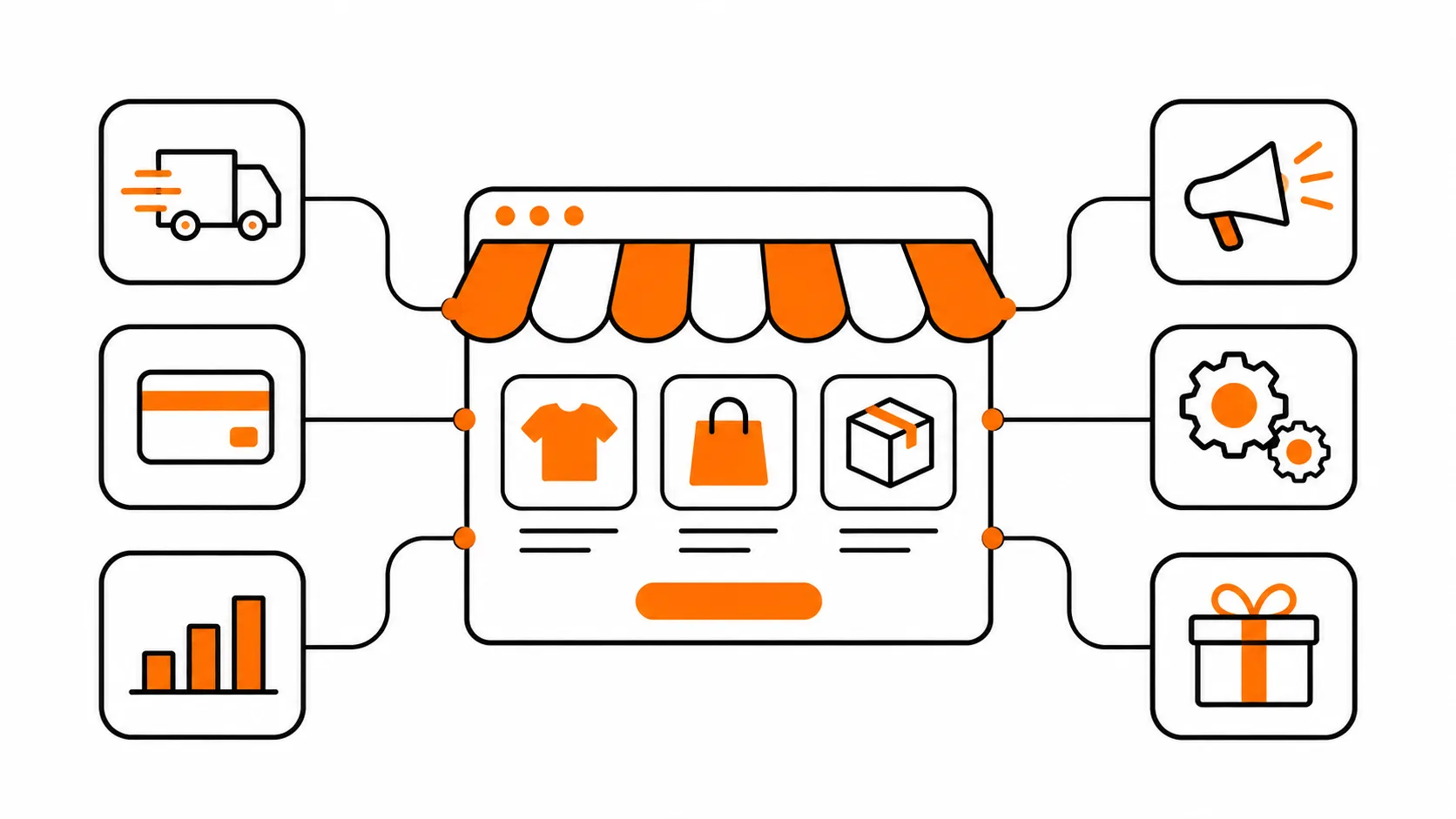
A Shopify app integration connects an app to your store so it can add features or work with other services. Before you install one, check what store data it can access, whether it is compatible with your store and theme, how it connects to the theme, and how you would reverse it. Test using the app provider's documented approach, and keep a record of what you changed. A duplicate theme is useful for trying theme changes, but it does not isolate the app itself, and installing an app or approving its permissions can affect your whole store.
This guide is for merchants anywhere who are choosing, connecting and maintaining apps. It covers general Shopify behaviour, then points to the app's own documentation for anything app-specific. Need a second pair of eyes on an integration? Send a project brief to discuss your store.
Contents
- Key facts
- What kinds of integration can an app use?
- How do you choose an app?
- How do you review an app's data access?
- How do you check compatibility?
- How do you connect an app to your theme?
- How do you test an integration?
- How do you roll back an integration?
- What should you check before you uninstall?
- How do you maintain integrations over time?
- Integration checklist
- Frequently asked questions
Key facts
Checked 14 November 2026 against Shopify's pages. Shopify's help pages are not dated, and its developer documentation changes, so confirm current behaviour in the linked page.
- Shopify shows an Install app screen before you approve an app. It lists the personal data the app can view and the store data it can view and edit, and links to the developer's privacy policy. You can review an installed app's activity and permissions later from its about page. Installing and setting up apps.
- Not every app works on every store. Developers can set installation requirements, such as shipping countries, currency, business address, the Point of Sale channel or the Online Store channel, and Shopify marks an app Not compatible if your store does not meet them. Finding and choosing apps.
- App blocks can only be used with compatible themes, and Shopify tells merchants to read the app listing and documentation to check theme compatibility. Extend your theme with apps.
- Apps built with Shopify's theme app extension framework do not edit theme code, but not every app is built that way, and some apps add code directly to a theme. Theme app extensions and Extend your theme with apps.
- If you change your published theme, you need to re-activate apps you installed for your theme, because they are not active by default in the new one. Extend your theme with apps.
- Some apps add code to your theme that is not removed automatically on uninstall, uninstalling a paid app cancels future recurring charges but you might still be billed for the current cycle, and charges made outside Shopify are not cancelled by uninstalling. Uninstalling apps.
- Shopify describes a dev store as a testing environment that lets you build and test apps without affecting any live store, and says creating one needs a Partner account or a merchant store with developer permissions. Dev stores.
- Shopify recommends making a backup copy of a theme before you customise it. A theme download does not include products, collections, menus, pages, blog posts or other store content. Duplicating themes.
What kinds of integration can an app use?
An app can reach your store in three broad ways, and which one it uses changes how you set it up and how you remove it. Shopify's page on extending your theme with apps names the three: an app block, an app embed, and code added to your theme.
| Route | What Shopify says | What it means for you |
|---|---|---|
| Native settings and the app's own admin | Shopify says you can install apps to integrate with external services and to add features to your Shopify admin, and that most apps are built by third-party developers, not Shopify. | Follow the app's setup steps. For help with a third-party app, Shopify says to contact the developer directly. |
| App block or app embed (theme app extension) | App blocks add app functionality where you want it in a theme, and you can add, remove, reposition and customise them in the theme editor. App embeds float or overlay in the theme, or add code that customers cannot see, and you can activate and deactivate them in the theme editor. Apps built in the theme app extension framework do not edit theme code. | Use the theme editor. App blocks need a compatible theme and may only suit certain page types. |
| Code added to your theme | Shopify says some apps inject code directly into your theme's code. | Read the app's instructions carefully, and plan how to remove that code if you uninstall. |
Do not assume an app offers more than one route, or that one route can stand in for another. Our guide to Shopify app blocks vs app embeds goes through the first two in detail, and the Shopify sections and blocks guide explains where blocks sit in a theme.
This guide does not cover building an app. If you are a developer, Shopify's theme app extension documentation is the place to start.
How do you choose an app?
Start from the job you need done, then check what each candidate needs and what it costs to keep. Shopify suggests beginning with questions such as what your store needs outside Shopify's core features, what would make managing your store easier, and how much you want to spend on apps.
Use this short list:
- Define the job. Write down the one thing you need the app to do. A clear job makes it easier to compare apps and to tell later whether the app is doing it.
- Read the listing. Check what the app says it does, what it needs from your store and how it connects to your theme. Shopify tells merchants to read the app listing and documentation to understand theme compatibility.
- Check the pricing section. Shopify says apps can have a recurring monthly fee, a one-time fee or usage-based charges, and that most paid apps offer a free basic plan or a free trial. Look at the pricing section of the listing for the current terms. This guide does not state any price.
- Look at the reviews. Shopify's merchant reviews show how long a reviewer has had the app installed. Reviews are one input, not a guarantee, and Shopify notes that a submitted review may not be published.
- Check who supports it. Shopify says that for an app built by a third-party developer you contact the developer directly for help (Apps for your Shopify store). Find out how to reach them before you rely on the app.
- Consider alternatives that need no app. Some jobs can be done with a theme setting or a native Shopify feature. Check your theme editor first, as in our guide to Shopify sections and blocks.
How do you review an app's data access?
Read the Install app screen carefully before you approve, and treat permissions as a decision, not a formality. Shopify says the screen shows two categories of access: the personal data an app can view, and the store data it can view and edit.
What to look for:
- What it can view. Shopify gives examples such as customers, store owner and blog contributors for personal data.
- What it can view and edit. Shopify gives examples such as customers, products, orders, discounts, gift cards, marketing, store analytics and Online Store. Ask whether each area matches what the app's job needs.
- The privacy policy and terms. The install screen links to the developer's privacy policy, and Shopify says some developers provide terms through another step in their app or website. Read what they say about how they handle your data.
- Storefront tracking. Shopify says apps might track and transmit app events on your storefront, including limited personal information you authorise. If you do not want an app to track those events, Shopify says not to install it, or to uninstall it.
After installation, Shopify says you can review an app's activity and permissions at any time from the app's about page. Build that into your routine, as the maintenance section below describes.
Whether an app needs a given permission is a question for the developer. If a request looks wider than the job, ask them to explain it before you approve. Nothing in Shopify's page says a particular permission is excessive for a particular job, so this is a judgement for you to make with the developer's answer in hand.
If customers are in regions with their own privacy rules, a legal or privacy adviser is the right person to review an app's data handling. This guide is general information and not legal advice.
How do you check compatibility?
Check the app's installation requirements, your theme, and your store setup before you install. Shopify gives three places to look.
- Installation requirements. Shopify says developers can set requirements, and lists five types: Point of Sale, shipping countries, currency, business address and Online Store. If your store does not meet them, the app is marked Not compatible and you cannot install it unless the settings change. Shopify says these settings are often difficult to change, and in most cases recommends finding an alternative app unless you plan to change your business setup. If you do change your settings, Shopify says it can take up to one hour before you can install the app.
- Theme compatibility. Shopify says app blocks can only be used with compatible themes, and that some apps that work with the Online Store channel might only be compatible with vintage themes. Read the listing and documentation for the app, and ask the theme provider if the answer is unclear.
- Compatibility after install. Shopify says that if an installed app becomes incompatible with your store, you will get an app notification in the admin explaining which settings are incompatible.
Compatibility with other apps is a separate question that Shopify's pages do not answer for you. The sources used here do not describe how to predict conflicts between two apps, so use the testing steps below, and the app providers' own guidance, to look for problems.
How do you connect an app to your theme?
Follow the route the app uses, and try theme changes on a copy of your theme first. The steps below describe the usual theme editor path. Your app's documentation takes precedence.
- Decide where to test. Installing an app and approving its permissions is a store-level step, not a theme-level one, and Shopify's pages do not say that installing it on a duplicate theme limits its access. If the app provider documents a test approach, or you can use a separate development store, consider that first. Otherwise treat the install as live.
- Install the app from its listing, after reviewing the Install app screen.
- Duplicate your theme and open the copy in the theme editor, so that theme edits, such as adding a block or turning on an embed, stay off the published theme until you publish the copy. Shopify recommends making a backup copy before customising. This protects the theme only, not the app's store-wide access, settings or integrations.
- For an app block, open the page and section where you want it and look for the app under Add block, or add an app section where the app supports it. Shopify says app blocks might only suit certain page types and that a size chart app, for example, might only work on product pages.
- For an app embed, open the App embeds area, select the app, activate it and review its settings.
- For code added to the theme, follow the app's instructions exactly, and write down every file and line you change so you can remove it later.
- Set up the app's own settings in its admin pages, and record them.
- Preview the affected pages before you publish.
If the app does not appear where you expect, check that it is installed, that it provides the type of block you are looking for, and that the page and theme support it. Then contact the app's developer for app behaviour, and the theme provider for theme behaviour.
How do you test an integration?
Use the app provider's documented test approach, make one change at a time, and check the pages and flows that the app touches. You are looking for the app doing its job without breaking something else.
What a duplicate theme does and does not isolate. A duplicate is a copy of your theme, so theme edits made on it do not change the published theme until you publish the copy. It does not isolate the app. Installing an app, approving its permissions, its own settings, its billing, and any integrations or automations it runs are not part of the theme, and may apply to your whole store whichever theme is open. Shopify's pages do not describe an app's effects on a duplicate theme, so ask the app provider what a test install does and what it touches.
When a separate development store helps. Shopify describes a dev store as a testing environment that you own and control, which lets you build and test apps in a realistic Shopify environment without affecting any live store (Dev stores). Shopify's page says you need a Partner account or a merchant store with developer permissions to create one. A dev store is a separate store, so it will not match your live store's products, settings or integrations unless you recreate them, and it will not reproduce everything about your live store. Use it where it suits, and check the app provider's guidance on test or sandbox use.
A practical test plan:
- List the affected pages. Include the page the app appears on, and the pages that share its template. A change to a shared template can affect more than the page you are looking at.
- Check on mobile and desktop. Look at layout, spacing and any overlay, such as a chat button or pop-up.
- Check the interactions. Click through the app's features. For anything involving the cart or checkout, follow the app's own testing guidance and avoid placing an unintended real order.
- Check what customers cannot see. An embed that adds code without a visible element cannot be verified by eye. Use the app's instructions for confirming it works.
- Avoid real customer data in tests unless the app's documentation says how to test safely.
- Watch performance. An app may add code to your pages. Check the pages again with the methods in our Shopify speed optimization guide, and compare with a baseline you took before the change.
- Check your markets and languages. If you sell in more than one market, check the market you selected and any market-specific app settings.
Preview conditions may not reproduce every live behaviour, and a test on a duplicate theme does not show you the app's store-wide effects. Decide before you publish what you will check again after the change is live. Shopify's pages do not describe a full test method for every kind of app, so the app developer's testing guidance is the authority for anything specific to that app.
How do you roll back an integration?
Plan the way back before you publish, and keep the evidence you need to do it. Rolling back a theme change and reversing an app's effects are different jobs, and Shopify's pages do not describe a single step that does both.
- Keep the original theme. Shopify recommends making a backup copy so you can discard your theme changes and start again. Keep the unchanged theme until you are sure the new one works. This covers theme changes only.
- Know what a theme copy does not include. Shopify says theme downloads do not include products, collections, menus, pages, blog posts or other store content. A theme copy is not a full store backup.
- Record the settings. Note the app's settings and any theme settings you changed, with screenshots or a written list.
- Record code changes. If an app added code to your theme, list every file and line, so removal is exact.
- Decide your trigger. For example, a broken checkout flow or a layout fault on a key page. Agree who can make the call and who can reverse the change.
- Know the order. As a general practice, not a Shopify rule: reverse theme changes first, then work through the app's own settings, permissions, integrations and billing, following the app provider's instructions.
Reversing theme changes is not the same as removing the app. Deactivating an embed or switching theme changes what that theme shows, but it does not necessarily stop everything the app does. The app, its permissions, any data it has stored or synced, its settings, its integrations and automations, and its billing can remain until you uninstall it and, where the app says so, take extra steps. Shopify says apps you installed for your theme need re-activating if you change your published theme, which is a statement about the theme, not about the app's other effects. Check what the app provider says is affected.
What should you check before you uninstall?
Check for leftover theme code, billing, data and dependent workflows before you remove an app. Shopify lists several considerations on its page about uninstalling apps.
- Extra uninstall steps. Some apps add code to your theme that is not removed automatically. Before uninstalling, Shopify says to review the app's listing or contact the developer to find out if extra steps are needed.
- Billing. Uninstalling a paid app cancels future recurring charges, but you might still be billed for the current billing cycle. If you want to request a refund, Shopify says to contact the developer before uninstalling.
- External charges. Some third-party apps charge outside Shopify, and uninstalling does not cancel those. Check the app's billing settings or contact the developer.
- Inventory at app locations. If an app manages inventory at a location, Shopify says you need to transfer or delete that inventory as part of the uninstall.
- Workflows. Any automation, integration or store feature that depends on the app stops working after you uninstall it.
- Your data. Some apps store data that you cannot recover after uninstalling, so Shopify says to export anything you need first.
- Reinstalling. Shopify says you can reinstall most apps, but your previous settings or data might not be restored.
Do the uninstall on a quiet day, after you have noted the app's settings and any theme code to remove, and check the storefront and your key workflows afterwards.
How do you maintain integrations over time?
Review them on a schedule, because apps, themes and your own store settings all change. This guide does not set a frequency, since the right rhythm depends on how many apps you run and how much they matter to sales.
- Keep an inventory. For each app, record its job, who owns it, how it connects, what data access it has, what it costs and where its documentation is.
- Review permissions. Shopify says you can review an app's activity and permissions at any time from its about page. Look for access you no longer need.
- Remove what you do not use. An unused app still has access and may still be billing. Check the cost and uninstall considerations before you remove it.
- Retest after changes. Retest after a theme change, a theme update or a significant store setting change. Shopify says apps need to be re-activated if you change your published theme.
- Watch for notices. Shopify says it notifies you in the admin if an installed app becomes incompatible with your store.
- Keep the developer's contact details, and note their support channels in your inventory.
Integration checklist
| Stage | Check |
|---|---|
| Before choosing | Write the one job the app must do. Read the listing, the pricing section and the support options. |
| Before installing | Review the Install app screen: personal data, store data, privacy policy. Check installation requirements and theme compatibility. |
| Connecting | Use the provider's test approach or a development store where it suits. Install knowing it is store-level. Try theme edits on a duplicate theme. Record settings and any code changed. |
| Testing | Check affected pages on mobile and desktop, interactions, markets, and performance against a baseline. |
| Before publishing | Keep the original theme. Write down your rollback trigger, and how you would reverse the app's non-theme effects as well as the theme changes. |
| After publishing | Recheck the pages and flows you listed. |
| Before uninstalling | Check theme code, billing, external charges, inventory, workflows and data export. |
| Ongoing | Keep an inventory. Review permissions. Retest after theme or settings changes. |
Frequently asked questions
What is a Shopify app integration?
It is an app connected to your store so it can add features or work with other services. Shopify says apps can add features and integrations to your theme, and that most apps are built by third-party developers rather than Shopify. What a given app can do depends on its design and the access you approve.
How do I check what data a Shopify app can access?
Read the Install app screen before you approve. Shopify says it shows the personal data the app can view and the store data it can view and edit, with a link to the developer's privacy policy. After installing, you can review the app's activity and permissions from its about page.
Will every app work with my theme?
No. Shopify says app blocks can only be used with compatible themes, and that you should read the app listing and documentation to check whether the app works with your theme. Some apps might only be compatible with vintage themes, and some add their own code to your theme instead of using blocks or embeds.
How do I test a Shopify app integration?
Follow the app provider's documented test approach first. You can try theme changes, such as adding an app block, on a duplicate theme, because Shopify recommends a backup copy before you customise a theme. A duplicate theme does not isolate the app itself: installing it and approving its permissions can apply to your whole store, and some app settings and integrations are not part of the theme. Where you can, test on a separate development store, which Shopify describes as a testing environment that does not affect any live store.
What happens to my theme when I uninstall an app?
It depends on the app. Shopify says some apps add code to your theme that is not removed automatically when you uninstall, so check the app listing or ask the developer whether extra steps are needed. Uninstalling also stops any automation or feature that relies on the app.
Does uninstalling an app cancel its billing?
Not always. Shopify says uninstalling a paid app cancels future recurring charges, though you might still be billed for the current cycle, and that charges made outside Shopify are not cancelled by uninstalling. Check the app's billing settings or contact the developer.
Will my apps carry over if I change theme?
Do not assume so. Shopify says that if you change your published theme, you need to re-activate the apps you installed for your theme, because they are not active by default in the new one. Check and test each integration after a theme change.
Need help with an integration?
If you are weighing an app, connecting one to a custom theme, or untangling conflicting integrations, send a project brief and describe the store, the app and what you need. Our Shopify development services page explains the kind of work we do, and scope is agreed before work starts. This guide makes no promise about what any integration will deliver.
Sources
All sources checked 14 November 2026. Shopify's help pages do not show a date.
- Installing and setting up apps, Shopify Help Center.
- Finding and choosing apps, Shopify Help Center.
- Extend your theme with apps, Shopify Help Center.
- Uninstalling apps, Shopify Help Center.
- Duplicating themes, Shopify Help Center.
- Apps for your Shopify store, Shopify Help Center.
- About theme app extensions, Shopify developer documentation.
- Dev stores, Shopify developer documentation.