How to Create a Landing Page in Shopify
Create the page in your Shopify admin, create a new page template in the theme editor, build it from sections, then assign the template to the page. Use a new template rather than editing the default page template, because a template change applies to every page that uses it.
By Charles · Published · Updated
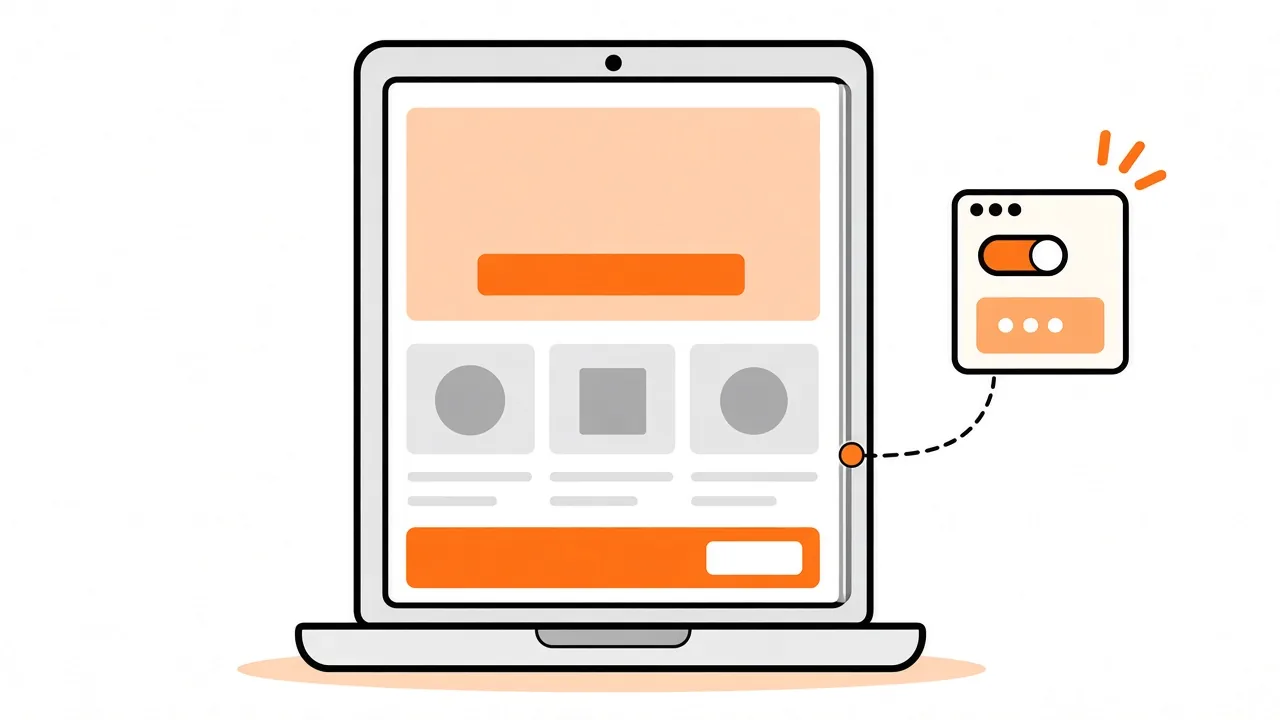
To create a landing page in Shopify, make a page in your admin, create a new page template for it in the theme editor, build the layout from sections, and assign the template to the page. Give it its own template so your other pages stay as they are.
For how shared templates affect other pages, see our guide to Shopify template changes. Want a landing page built for you? Send a project brief to discuss the work.
Key facts
- When you edit a template, your changes apply to every page that uses it. Shopify Help Center, checked 10 November 2026.
- A new template created from an existing one starts with the same sections, and you can add, remove or hide sections without affecting pages that use the original. Shopify Help Center, checked 10 November 2026.
- You create and edit templates in the theme editor, but you change a page's assigned template in your Shopify admin. Shopify Help Center, checked 10 November 2026.
How do you create a landing page in Shopify?
Build a new page template, then assign it to a page. Shopify documents each step in its templates guide, checked 10 November 2026.
- Duplicate your theme. Shopify says it is a good idea to make a backup copy before customizing, so you can discard changes and start again (checked 10 November 2026).
- Create the page. Shopify says you make custom pages in your admin for content such as an About Us page. Create the page that will hold the landing page.
- Create a template. In the theme editor, open the page selector, choose the Pages template type and click Create template. Enter a unique name and, under Based on, pick the existing template to copy.
- Build it from sections. Click Add section to choose sections, and Add block inside a section where it offers blocks. Click Save.
- Preview it. In the Preview section of the editor sidebar, click Change and pick your page to see it with the new template.
- Assign it. Go to Online Store, then Pages, open the page, choose the template in the Theme template menu and save.
Which part happens where?
Layout work happens in the theme editor and assignment happens in admin. Keeping them apart avoids the most common surprise: a template that looks right in the editor but is not used by the page.
| Task | Where | Effect |
|---|---|---|
| Create or edit a template | Theme editor | Changes every page assigned to that template. |
| Preview a page with a template | Theme editor, Preview section | Does not assign the template. |
| Assign a template | Shopify admin, Online Store, Pages | The page now uses that template. |
Shopify says previewing a template with a resource does not assign it: you still need to assign the template in your admin.
Why create a new template instead of editing the default?
Because editing the default changes every page that uses it. Shopify's example is a newsletter form added to a collections template, which then shows on all collection pages using it. The same logic applies to the default page template, so a landing page built on it would change your About, Contact and policy pages too.
A new template based on the default starts with the same sections but is separate, so you can change it without touching the pages that use the original.
Check which of your pages share a template before you begin. Our template changes guide shows how.
What should the page contain?
Start with the one action you want visitors to take, then choose sections your theme already offers. Shopify says the sections available in your templates depend on your theme, and not every section or block has settings you can edit. Open Add section in the editor to see what yours includes.
If your theme lacks a section you need, such as a particular layout or content type, that is a theme code job rather than a setting. See our guide to custom Shopify theme sections for what to include in a brief. Also check the page's speed once it is built with our Shopify speed guide.
What can go wrong with the template and the live theme?
The templates you can assign come from the live theme. Shopify says the template options shown in your admin are based on the templates available in your current live theme only. A template you build on a duplicate theme can be previewed in the editor, but you should check it appears in the Theme template menu before you promise a launch date.
Plan how the template reaches the live theme, and test on a duplicate first. If you change themes later, Shopify's template options come from whichever theme is live, so check your landing pages after any theme switch.
How do you check the landing page before launch?
Preview it in the editor, then open the live page and check the basics.
- Open the page on mobile and desktop and check every section and button.
- Click each link and call to action.
- Open one existing page, such as About, to confirm it did not change.
- Confirm the page is assigned to the new template in your admin.
If the landing page replaces an older URL, set up a redirect first; see how to set up Shopify URL redirects.
Can Ecommerce Nerds build the landing page?
A multi-section landing page is one example in our Growth Tweak package, a larger conversion-focused change across several templates, for a fixed $1,299 USD. If the page needs one new section your theme does not have, our Custom Section package covers one new section for $699 USD. Both are examples, not promises that every request fits one job.
Describe the page, the sections and where it should appear in a brief, and we will confirm the fit and send a fixed quote within one business day before you pay. Browse the Shopify conversion improvements service and read how a project works first if you want the steps.
Frequently asked questions
Do I need an app to build a landing page in Shopify?
Not necessarily. In the theme editor you can create a new page template and add sections to it. The sections available depend on your theme, so check what yours offers before you plan the page.
Why did my other pages change when I added sections?
Shopify says changes to a template apply to every page that uses it. Create a new template based on the default one for the landing page, and assign only that page to it.
How do I assign a template to a Shopify page?
In your admin go to Online Store, then Pages, and open the page. Choose the template in the Theme template menu and save. Previewing a template in the theme editor does not assign it.
Can Ecommerce Nerds build a multi-section landing page?
A multi-section landing page is one example in our Growth Tweak package, which is $1,299 USD. Send a brief and we will confirm the fit and quote a fixed price before you pay.
Have a landing page to build? Send a project brief with the sections and the one action you want visitors to take.