Shopify Inventory Sync: A Merchant Guide
Shopify tracks inventory for product variants at locations within a store. To synchronize stock with another sales channel, system or separate Shopify store, first confirm the connection and its behavior, choose where stock changes are authoritative, then test and reconcile a small scope before expanding.
By Charles · Published · Updated
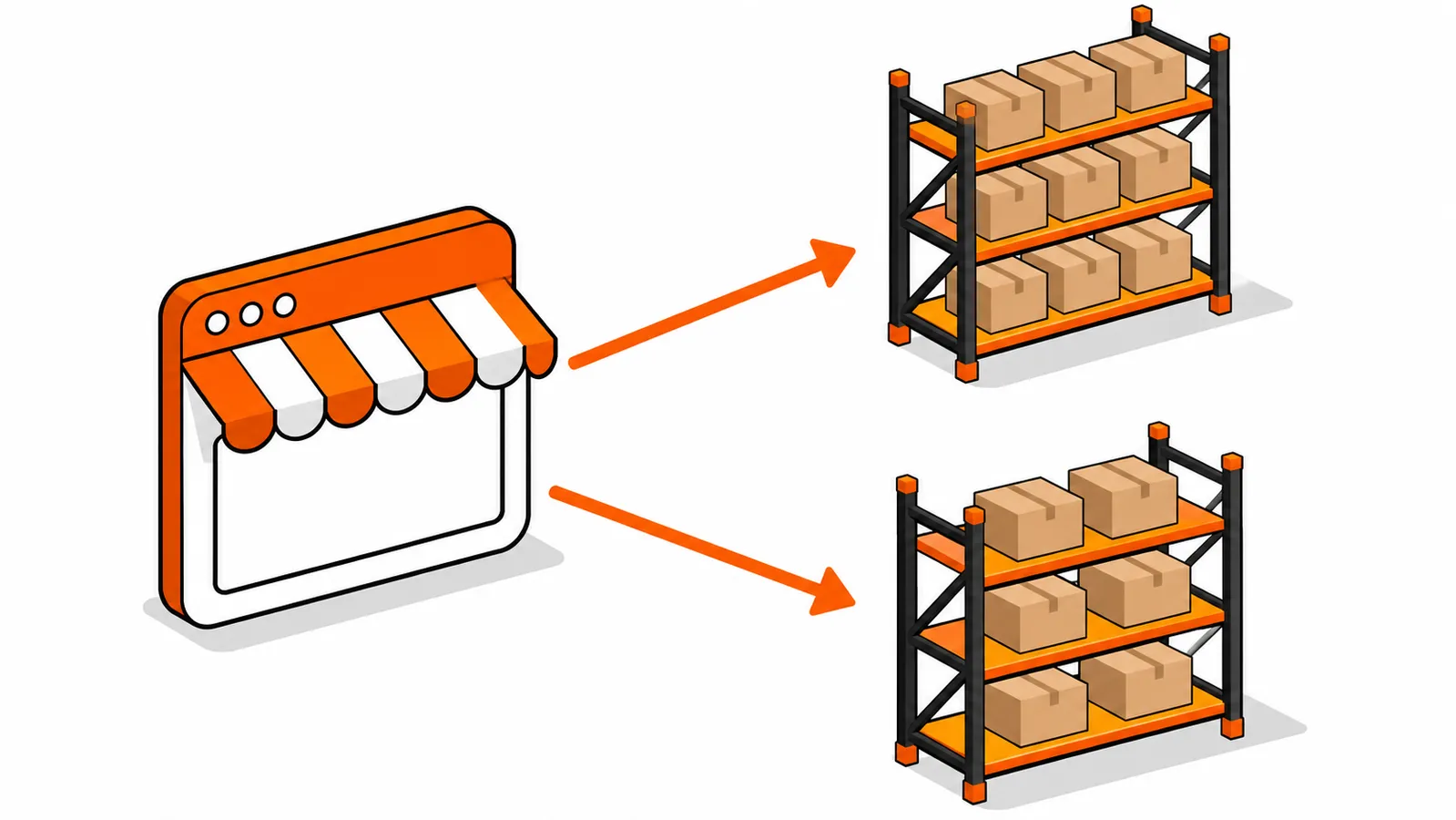
Shopify inventory sync starts with tracking each variant's stock at the right locations in your store, then connecting any other sales channels or systems that need those quantities. For each connection, confirm what it updates, which system controls the quantity and how failures are handled before relying on it for sales.
This guide covers native location tracking, separate stores and third-party connections. If you want a fit check, describe your store and scope; the work and service coverage need to be agreed first.
Contents
- What does Shopify track?
- When do you need a connection?
- How do you prepare your inventory?
- How do you choose a sync app?
- How do you test safely?
- How do you investigate and recover?
- How do you maintain the setup?
- Frequently asked questions
Key facts
Checked 25 November 2026 against Shopify's documentation. Recheck the current documentation and your provider's terms before making changes.
- Shopify records inventory at locations and lets merchants manage quantities and transfers in the admin. Inventory and locations.
- Shopify distinguishes available, committed, unavailable, on-hand and incoming quantities. Available excludes committed, unavailable and incoming stock. Inventory states.
- Shopify says some fulfillment apps can manage inventory alongside store locations, subject to the app's capabilities. Multiple locations and apps.
- Shopify's all-states inventory CSV records separate location rows and uses current on-hand values for import validation; an export is a snapshot, not a live backup. Inventory CSV.
What does Shopify track?
Shopify tracks a product variant's quantities by location when inventory tracking is enabled. A location can represent a place where stock is held or fulfilled. Configure locations and the variants they fulfill to reflect your actual operation, then inspect quantities at each location rather than assuming that all stock is interchangeable.
The number you compare matters. Shopify defines on hand as available, committed and unavailable units together. Available is stock that can be sold; committed is set aside, including for unfulfilled orders. Unavailable can include stock held for reasons such as damage, while incoming has not yet become available. See Shopify's inventory states for the current definitions.
For example, two screens may show different numbers because one shows on hand and the other available. Compare the same variant, location, state and time before treating the difference as an error. At a location that does not fulfill a variant, Shopify says available may appear as a dash even when on-hand stock is recorded. See viewing inventory.
When do you need a connection?
Start by mapping where the same physical stock is offered and where its quantities are maintained. Native tracking within one store is a different question from transmitting quantities between separate systems.
| Situation | Starting point | Question to resolve |
|---|---|---|
| One Shopify store with several locations | Configure and inspect Shopify's location-level inventory. | Which location holds and fulfills each variant? |
| A connected sales channel | Review the channel's own documentation and settings. | Which quantities and locations does this particular connection use? |
| Two separate Shopify stores | Treat them as separate stores and evaluate a suitable connection. | Which store or external system controls each shared stock pool? |
| A warehouse, supplier or other external system | Map its records and evaluate a compatible integration. | How are quantities, locations and changes exchanged? |
Shopify's multiple-location guidance describes how some fulfillment apps manage inventory alongside store locations. It does not establish that every third-party app connects every marketplace or separate store. Verify the exact account, region, plan, connector and workflow with the relevant provider.
Shopify POS and external point-of-sale systems are also different cases. Check the documentation for the exact products and configuration you use rather than assuming that a third-party POS behaves like Shopify POS.
How do you prepare your inventory?
Create a clean baseline and a written map before allowing a connection to change stock. A sync can move incorrect starting data as readily as correct data.
- List stock pools and locations. Record where items physically sit, who fulfills them and which channels draw from each pool. A single warehouse sold through two stores is not automatically two independent piles of stock.
- Match variants. List identifiers and variants in each system. Check duplicates, missing identifiers, bundles and units of measure with the provider; do not assume a shared SKU alone creates a link.
- Confirm the quantity and owner. Decide which system is authoritative for each stock pool and whether the connection sends available, on-hand or another quantity. Document the direction of each update and who may make manual adjustments.
- Count and reconcile. Compare physical counts and open commitments with the relevant location and inventory state. Resolve differences before the initial sync.
- Record a baseline. Export the inventory and save the mapping, settings, time and known exceptions securely. Shopify's inventory CSV guide explains export formats and import safeguards. A file becomes stale as sales and adjustments continue; it is not safe to reimport blindly.
Include fulfillment, customer service and the person who controls stock adjustments in the plan. Agree who can pause a connection and who will resolve an order if stock is unavailable.
How do you choose a sync app?
Choose against your written stock map and ask the provider to confirm the behavior you need. A listing's general promise to sync inventory does not establish which events, channels or locations it supports.
| Check | Ask the provider |
|---|---|
| Connections | Does it support these exact Shopify stores, channel accounts, regions and locations? |
| Mapping | How are variants and locations matched? What happens to missing or duplicate identifiers, bundles and shared stock? |
| Direction | Which system writes each quantity? Can another tool or manual change overwrite it? |
| Events | How are sales, cancellations, returns, receipts and transfers handled? Are orders included or only quantities? |
| Timing | When do updates run, how is delay shown and what happens during an outage? |
| Exceptions | Are failed updates visible? Can they be retried without applying a change twice? |
| Access and cost | What permissions and data are required? What are the current fees, limits and support arrangements? |
| Exit | How do you pause it, export its data and stop writes without losing track of outstanding changes? |
Ask for documentation or a demonstration of any critical answer. Check the app's requested access before approval and who will own support. Our Shopify app integration guide covers installation and permissions; the app stack audit helps identify other tools that might affect the same workflow.
How do you test safely?
Use the provider's documented test or sandbox method where available, then verify a small, controlled scope before expanding. A duplicate theme does not isolate an app's store-level access or inventory writes. Shopify describes development stores as testing environments; check whether the app and external channel support your test setup, and remember a separate store may not reproduce live settings or stock.
Before a live pilot, identify the owner, test variants and locations, expected results, stop conditions and customer impact. Use test transactions only where the provider explains how to avoid unintended real orders or charges. If safe isolation is unavailable, agree a limited live procedure and the people who can stop it before proceeding.
Test each applicable event separately and record the time and resulting state in every system:
- Make a controlled stock adjustment and check the mapped location and quantity.
- Test a sale and confirm the expected change, including any order and commitment behavior.
- Where supported, test cancellation, return and restock; do not assume a refund returns physical stock to available inventory.
- Test a receipt or transfer if your workflow uses it, and check that it lands at the intended location.
- Test an exception or interruption using the provider's safe method. Confirm how it alerts you, retries and prevents duplicate changes.
Compare observed delay with the provider's documented behavior and your own tolerance. Watch the first live changes and reconcile them against orders and physical stock. A successful test on one variant is evidence for that case, not proof that every listing or channel is correct.
How do you investigate and recover from a mismatch?
Contain further incorrect writes, establish the current physical and committed stock, then reconcile under an agreed owner. Do not restore an old export over active orders.
- Record the evidence. Note the variant, location, state, quantity, time, recent orders and adjustments in each system. Check the connector's queue and errors.
- Limit further impact. Follow the provider's instructions to pause affected writes or otherwise contain the issue. Decide how to handle sales while counts are uncertain; do not promise stock that has not been confirmed.
- Find the cause. Check mapping, wrong location or state, competing writers, delay, a failed update and changes made while a connection was paused. Shopify's adjustment history identifies the activity and the staff member, app or channel responsible where recorded.
- Reconcile. Count the affected stock, account for orders and returns, and agree the authoritative quantity with the people responsible. Apply corrections through the documented process and record them.
- Resume carefully. Resolve pending or duplicated events with the provider, restart only when the mapping and counts are understood, and monitor subsequent changes. Escalate unresolved differences to the app or channel support team.
Keep customer communication and fulfillment decisions with the people responsible for those orders. A sync tool cannot guarantee that stock is available when there is a delay, bad mapping or an incorrect physical count. For storefront handling, see how to hide out-of-stock products; presentation settings do not repair an inventory mismatch.
Before uninstalling, review data exports, app-managed inventory locations, dependent workflows and billing with the provider. Shopify notes that uninstalling can affect app-managed inventory and that some data may not be recoverable. See uninstalling apps. Uninstalling is not a general rollback of past changes.
How do you maintain the setup?
Assign an owner to review exceptions and reconcile stock regularly at a frequency suited to sales volume and risk. Keep the stock map, provider contacts, permissions, documented behavior and recovery steps current. Recheck a small sample after changes to products, locations, channels or the integration itself.
Review recurring mismatches as a process problem: identify whether counts, mappings, delays or competing updates are responsible before adding another tool. Track which system is allowed to change each quantity and retire obsolete rules through the provider's documented process.
Frequently asked questions
How do I manage inventory in Shopify?
Set up your locations, enable tracking for the relevant product variants, enter quantities at the correct locations and check those records against physical stock. Review available and committed quantities separately.
Does Shopify automatically sync inventory between separate stores?
Do not assume separate stores share inventory automatically. Check whether a suitable integration supports both stores, the locations and the stock changes you need, then test its behavior.
Does every inventory app support every marketplace?
No. Confirm the specific sales channels, accounts, locations and workflows with the app provider before installing or relying on a connector.
Why do two inventory quantities differ?
They may refer to different locations or inventory states, or an update may be delayed or have failed. Check the mapping, recent changes and provider logs before correcting a quantity.
Will uninstalling a sync app restore my old inventory?
Do not assume it will. Export the data you need, understand app-managed locations and dependent workflows, and agree on a reconciliation plan before uninstalling.
Need a fit check?
Describe your store and scope, including your locations, sales channels and the problem you want to solve. Ecommerce Nerds can review the brief and confirm whether the requested work is a fit before any scope is agreed.